
Tech Help
Free Up Storage on Your Phone (Step-by-Step)
By the Wires of Life Editorial Team · Oct 18, 2026 · 5 min read
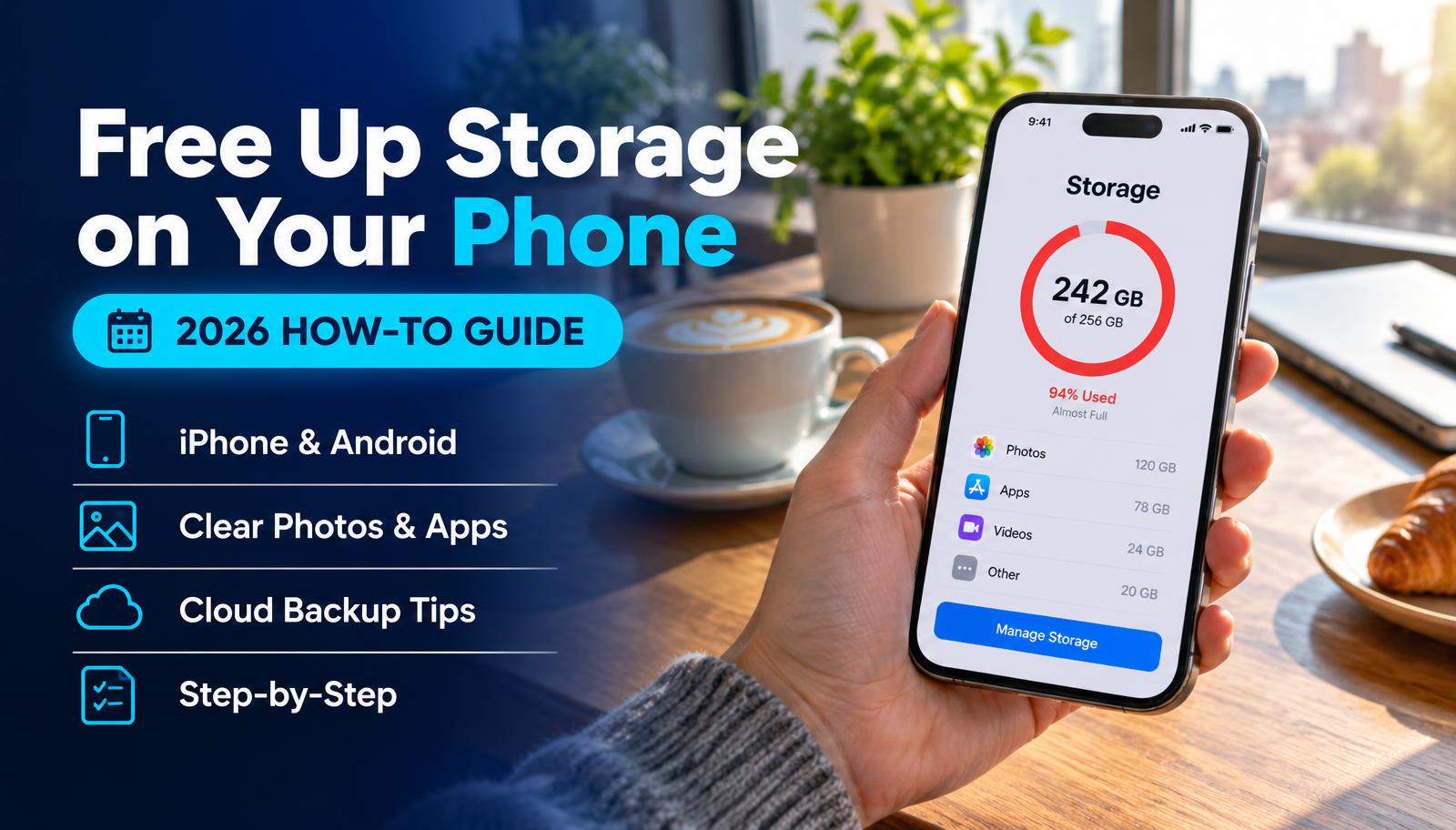
Free up space in 15 minutes
- 1
Check what's using space
iPhone: Settings > General > iPhone Storage. Android: Settings > Storage.
- 2
Back up photos and videos
Turn on iCloud Photos or Google Photos backup and wait for it to finish.
- 3
Turn on optimized storage
Keep smaller copies on the phone, full ones in the cloud.
- 4
Delete or offload unused apps
Remove apps you haven't opened in months.
- 5
Clear big chat media
Delete large videos in WhatsApp, Messages and similar apps.
- 6
Empty Recently Deleted
Photos stay in that album for up to 30 days unless you empty it.
Find the space hogs
iPhone: Settings → General → iPhone Storage. It lists apps by size and suggests things to remove.
Android: Settings → Storage, or the Files by Google app's "Clean" tab, which finds duplicates, large files and junk.
Biggest wins first
Videos. One long 4K video can be several gigabytes. Delete what you don't need, then empty "Recently Deleted" (it holds files for 30 days).
Messaging apps. WhatsApp, iMessage and others store every photo and video you've been sent. Their settings let you review and clear large files.
Offload apps. iPhone can remove an app but keep its data, so it reinstalls with nothing lost.
Streaming downloads. Downloaded shows, music and podcasts add up fast.
Before you delete photos
Make sure your photos are actually backed up. Open iCloud Photos or Google Photos on a computer and confirm recent ones are there.
Storage cleanup checklist
Common questions
Does clearing cache delete my data?
No. Cache is temporary files apps can rebuild. Clearing app data or storage on Android, however, does sign you out and resets the app.
Sources
Last verified: November 2, 2026. This is general guidance based on official documentation. We did not run hands-on lab tests for this guide.