
Tech Help
Chrome Running Slow? Here's How to Speed It Up
By the Wires of Life Editorial Team · Oct 16, 2026 · 6 min read
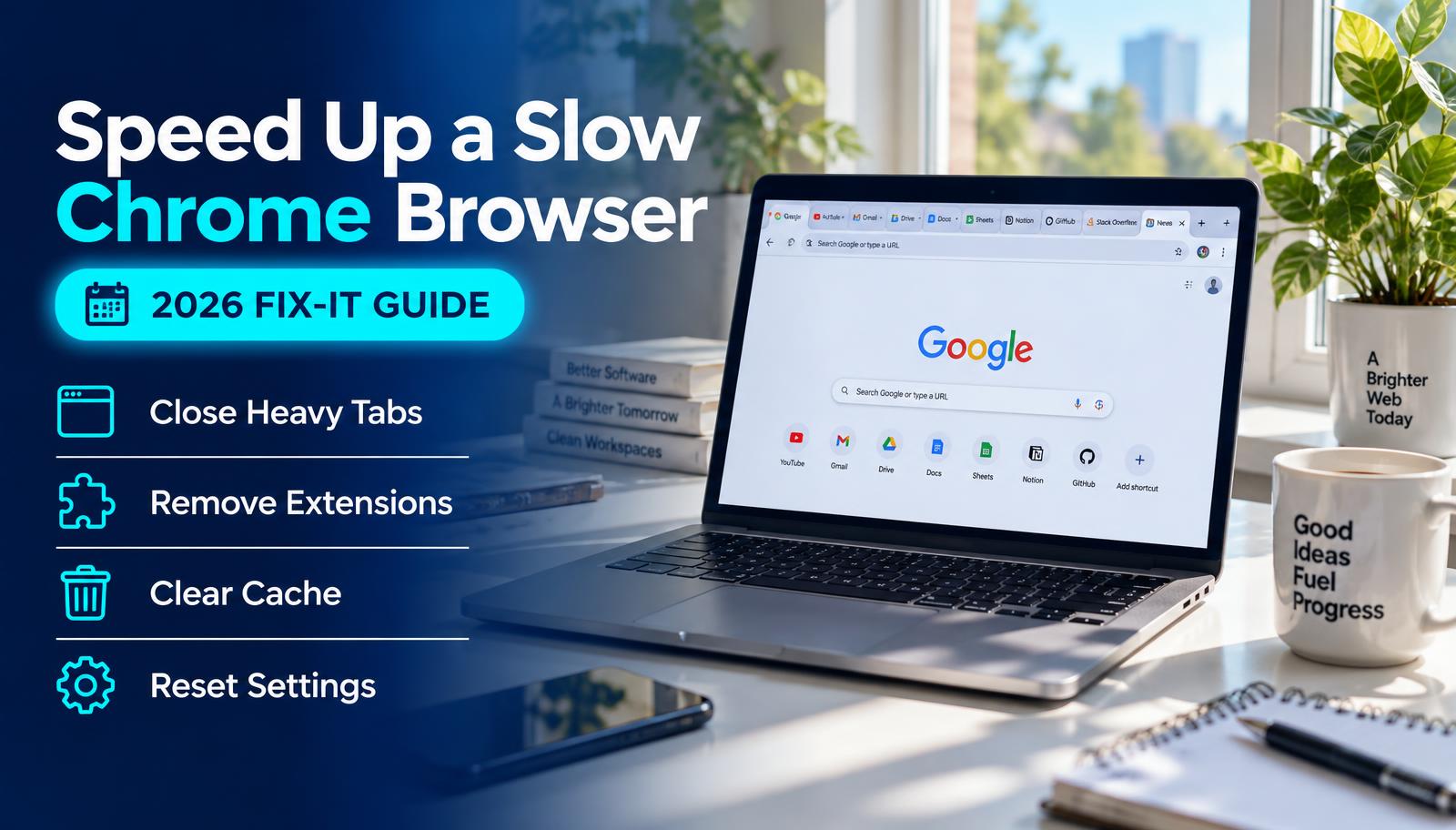
Speed up Chrome step by step
- 1
Update Chrome
Menu > Help > About Google Chrome, then relaunch.
- 2
Find the heavy tab
Open Chrome's Task Manager (Shift+Esc on Windows) and close what's using the most memory.
- 3
Remove unused extensions
Go to chrome://extensions and remove anything you don't use.
- 4
Turn on Memory Saver
Settings > Performance lets Chrome rest inactive tabs.
- 5
Clear cache
Clear cached images and files from the last 4 weeks.
- 6
Reset settings as a last step
Settings > Reset settings restores defaults without deleting bookmarks.
Quick wins
Update: Menu → Help → About Google Chrome. It checks and installs updates, then asks you to relaunch.
Memory Saver: Settings → Performance. It frees memory from tabs you're not using and reloads them when you click back.
Extensions: go to chrome://extensions and remove anything you don't recognize or use. Each one runs in the background.
Tabs: dozens of open tabs is the most common cause of a slow browser. Use tab groups or bookmarks instead.
If it's still slow
Open Chrome's Task Manager (Menu → More tools → Task manager) to see which tab or extension is using the most memory.
Clear cached files if pages look broken or stale. You don't need to delete passwords or history.
Unexpected pop-ups, new toolbars or a changed search engine can mean unwanted software. Chrome's help page explains how to reset settings and remove it.
Speed-up checklist
Common questions
Does clearing history make Chrome faster?
Rarely by much. Extensions, too many tabs and an outdated version matter far more.
Sources
Last verified: November 2, 2026. This is general guidance based on official documentation. We did not run hands-on lab tests for this guide.