
Tech Help
Wi-Fi Connected but No Internet? Try These Fixes
By the Wires of Life Editorial Team · Oct 22, 2026 · 6 min read
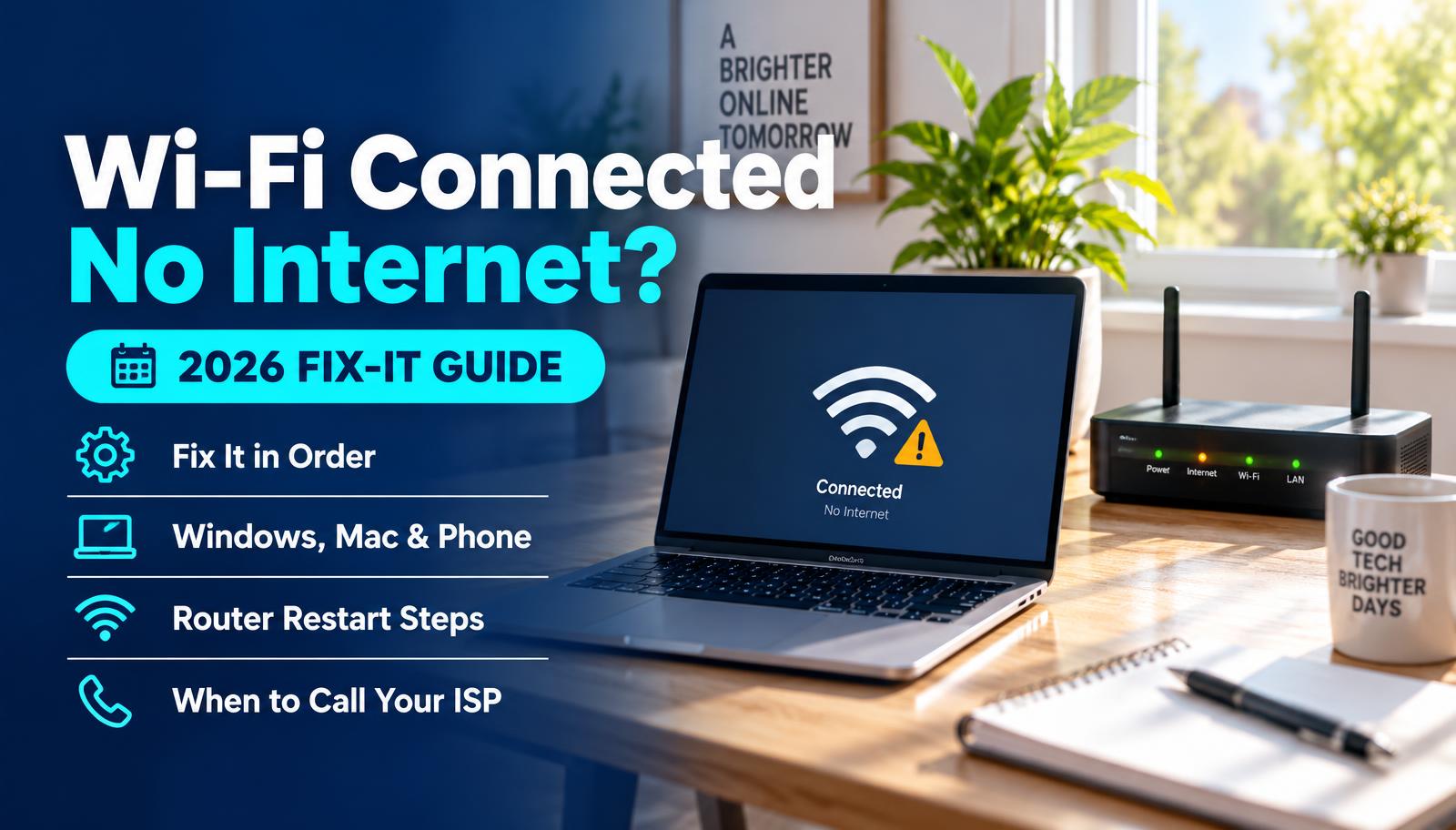
Fix it in this order
Fastest, safest fixes first. Stop as soon as pages load.
- 1
Test a second device — 30 seconds. Tells you whether to fix one device or the whole network.
- 2
Check your provider's outage page — 1 minute. Use mobile data. If there's an outage, nothing at home will help.
- 3
Restart modem, then router — 3–5 minutes. Clears most home network glitches without changing any settings.
- 4
Forget and rejoin the Wi-Fi on the stuck device — 2 minutes. Gets a fresh connection and address from the router.
- 5
Turn off VPN, then restart the device — 2 minutes. VPNs and security apps commonly block traffic after updates.
- 6
Reset network settings on the device — 5 minutes. Last resort on the device side — it erases saved Wi-Fi passwords.
- 7
Call your provider — Varies. If the modem's internet light stays off or red, the fault is on their line.
Step-by-step: get back online
- 1
Check a second device
Open a website on another phone or laptop on the same Wi-Fi. If it works, skip to step 5 — the problem is your first device. If nothing works, keep going.
- 2
Rule out an outage
Switch your phone to mobile data and open your provider's app or outage page. If there's a reported outage, wait it out — restarting won't help.
- 3
Restart the modem first
Unplug the modem (the box your provider's cable or fiber line plugs into). Wait 30 seconds, plug it back in and wait 1–2 minutes until its lights settle.
- 4
Then restart the router
If you have a separate router or mesh system, unplug it, wait 30 seconds and plug it back in. Give it about 2 minutes, then test again.
- 5
Forget and rejoin the network
On the stuck device, open Wi-Fi settings, choose "Forget" on your network, then reconnect and re-enter the password.
- 6
Turn off VPN and restart the device
Disable any VPN or security app for a minute. Then restart the device and install pending system updates.
- 7
Run the built-in troubleshooter or reset network settings
On Windows, use Settings > Network & internet > Network troubleshooter. On iPhone, Settings > General > Transfer or Reset > Reset Network Settings (this erases saved Wi-Fi passwords).
- 8
Call your provider
If the modem's internet/online light is still off, red or blinking after a restart, the signal isn't reaching your home. Your provider needs to fix it.
Step 1: Is it one device or everything?
Grab a second phone or laptop. If it loads pages fine, the problem is on your first device. If nothing works, it's the router, modem or provider.
If everything is offline
Unplug the modem and router. Plug in the modem first and wait until its lights settle (usually 1–2 minutes). Then plug in the router.
Look at the modem lights. A red or blinking "internet" or "online" light usually means the signal from your provider is down.
Check your provider's app or outage page using mobile data.
If only one device is stuck
Toggle airplane mode on and off.
Forget the Wi-Fi network and reconnect with the password.
Restart the device. Then check for system updates.
Turn off any VPN or security app for a minute to see if it's blocking traffic.
On Windows, use the built-in network troubleshooter. On iPhone, you can reset network settings as a last resort (it erases saved Wi-Fi passwords).
No-internet fix checklist
Common questions
Why does my phone say 'No internet connection' on Wi-Fi?
Your phone reached the router, but the router can't reach the internet, or the phone has a bad network setting. Restart both and test another device to narrow it down.
Should I reset my router to factory settings?
Only as a last step. A factory reset wipes your network name, password and settings, so every device will need to reconnect.
Sources
Last verified: November 2, 2026. This is general guidance based on official documentation. We did not run hands-on lab tests for this guide.